Tablet Setup
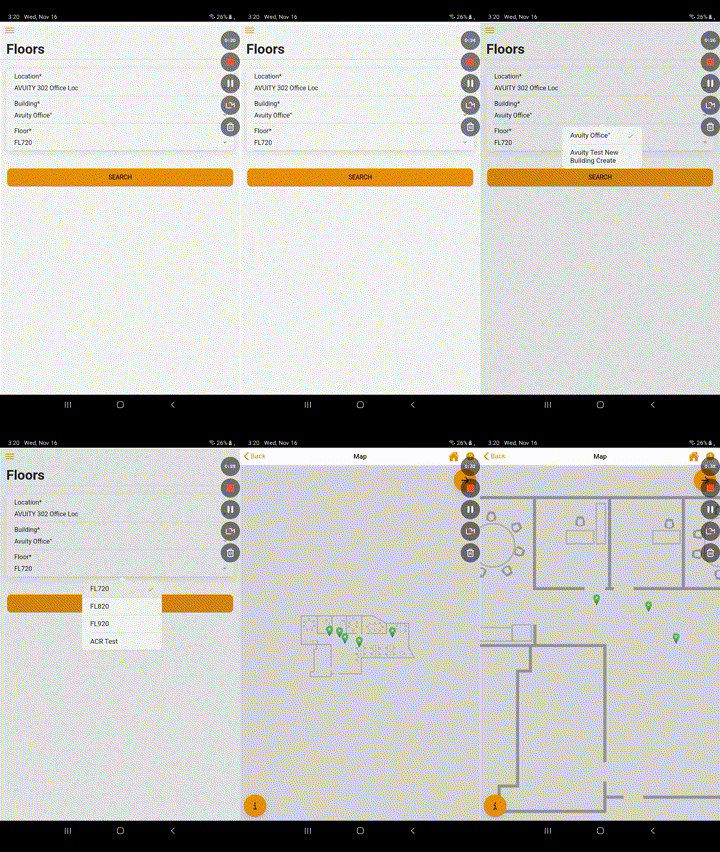
- Power on the tablet and select the “Avuity” app from the home screen
- Login to the app with the user credentials supplied
- From the dropdown menus, navigate to the floor plan map of the site being installed
 |  |
Assigning a VuAI Sensor to a Pin
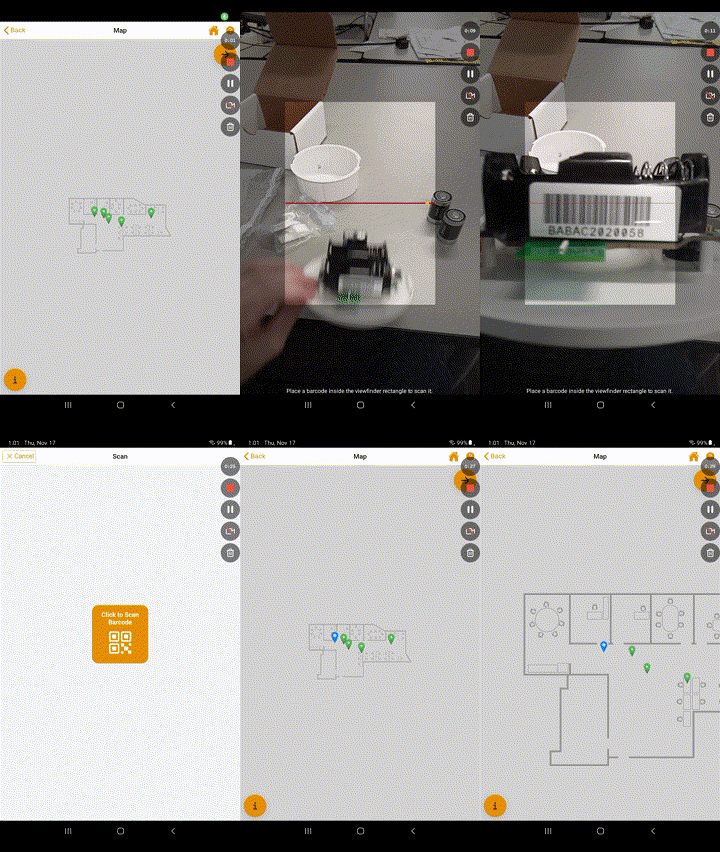
- Identify your physical location on the map as well as the location of the sensor you want to install
- Select the green pin on the map where you want to install the sensor
- Once the tablet’s camera loads, scan the barcode located on the sensor itself (scan the barcode on the physical device, NOT the box)
- Ensure the Sensor ID captured by the camera matches the Sensor ID on the physical device. If yes, continue by pressing “Install Sensor ID”
- A pop-up box will indicate that the Sensor ID was successfully assigned. Press “Ok”
- Install the batteries in the device and install the sensor in the ceiling
NOTE: the color of the pin on the map will change from green (unassigned) to blue (assigned)
Removing a Sensor ID from a pin
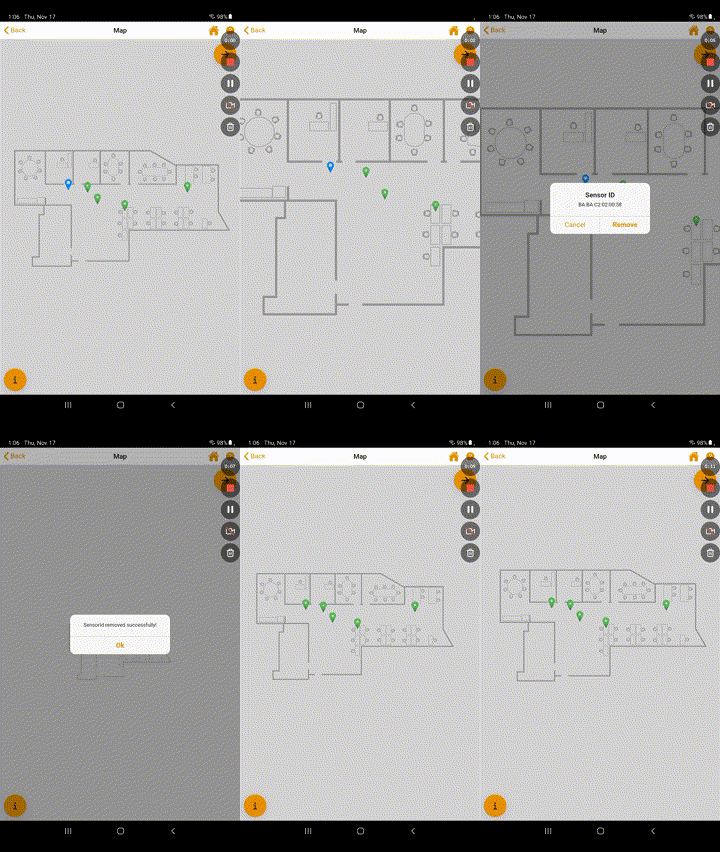
- Identify your physical location on the map as well as the location of the sensor you want to uninstall
- Select the blue pin on the map where you want to uninstall the sensor that is already assigned
- Review the pop up box and ensure the Sensor ID matches the one you wish to unassign. If yes, continue by pressing “Remove”
- A pop-up box will indicate that the Sensor ID was successfully removed. Press “Ok”
NOTE: the color of the pin on the map will change from blue (assigned) to green (unassigned)
Was this article helpful?
That’s Great!
Thank you for your feedback
Sorry! We couldn't be helpful
Thank you for your feedback
Feedback sent
We appreciate your effort and will try to fix the article