Booking a space
- Regular Bookings
- Start by going to the Map Booking view.
- If a map of a floor plan is not already loaded you will be prompted to select a Location, Building, and Floor to search for an available space. Included in the search is the Date and Start / End times.
- On submitting your search criteria, the floor plan will display with available spaces highlighted in dark green. Light green spaces display areas, but are not bookable.
- Simply click on an available area on the floor plan to view the details of the space and finalize your booking. Make any final adjustments to the booking then click the Confirm Booking button at the bottom.
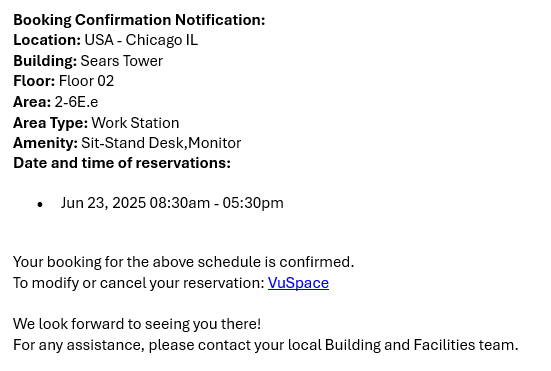
- If enabled, you may receive a booking confirmation email with "Your Reservation Confirmed" in the subject. The email will look similar to this and include your booking reservation details:
- The system will remember your last loaded floor plan per login session. So the next time you view the Home page or the Map Booking page, it will load the most recently loaded floor plan by default.
- Booking a space for someone else
- If you have permission to create a reservation for someone else, follow the same instructions for a regular booking, but when selecting a floor, you will also see a field for selecting the Organizer. By default this field is filled in with the logged in user.
- Search for and select the user you are reserving the space for in the Organizer field.
- On submitting your search criteria, continue with the steps for a regular bookings, select an available space on the floor plan, and confirm the booking.
- Favorites
- Spaces that you have created bookings for can be saved as a favorite by clicking to view the booking from the Home page or the Calendar view, and then clicking the heart icon in the top-right.
- Once you have favorite spaces saved, they will display on your Home page.
- To create a booking from a Favorite, click the Book Now button on the Favorite.
- Use the Calendar and Booking Times to find an available date and time slot for your booking
- Click the Confirm Booking button at the bottom to save the booking.
- Community Bookings
- Your Home page will also display Community Bookings - bookings for other users you are following and may have placed in a Group for easier tracking. See below for more information on following other users and setting up Groups.
- Booking a space near someone you are following
- To book a space near another user you are following, click on the Reserve Slot button for their community booking on your Home page or through the Calendar view.
- The map of the floor plan for the date and time of the user's booking will display, showing which space they have booked, and what other spaces are available.
- Simply click on an available area on the floor plan to view the details of the space and finalize your booking. Make any final adjustments to the booking then click the Confirm Booking button at the bottom.
- Group Community Bookings
- To book a space near another user you are following and have organized into a group with other users you are following, click on the View Members button for the Group's community booking on your Home page.
- The Group member bookings for that day will display. Click on the Reserve Slot button for the group member you would like to site near.
- The map of the floor plan for the date and time of the user's booking will display, showing which space they have booked, and what other spaces are available.
- Simply click on an available area on the floor plan to view the details of the space and finalize your booking. Make any final adjustments to the booking then click the Confirm Booking button at the bottom.
- General Admission Booking
- If enabled for your organization, a General Admission reservation allows the flexibility to work and meet in collaborative areas throughout the office. You can let people know you will be in the office on a specific floor, but don't necessarily need a dedicated workstation to work from.
- To create a General Admission booking, start by going to the Map Booking view.
- If a map of a floor plan is not already loaded you will be prompted to select a Location, Building, and Floor to search for an available space. Included in the search is the Date and Start / End times.
- On selecting to save your search criteria, the floor plan will display with available spaces highlighted in dark green. Light green spaces display areas, but are not bookable.
- Instead of clicking on an available space for a regular booking, click the General Admission booking icon in the bottom-right.
- Make any final adjustments to the booking then click the Book Now button at the bottom.
- A General Admission booking is associated to a specific floor.
- Scan a space - booking or check-in
- If bookable areas are setup with QR codes at your organization, you can scan this code with our mobile application to book the space, or check-in to a reservation.
- If you physically go to an available bookable space and scan the QR code, you will be prompted to create a new booking right then.
- If you scan a QR code for a space that you already have a reservation for, you will be prompted to check-in to the reservation.
- You can also use the QR code to create a future booking.
- Check-in to a Reservation
- Checking in to a reservation lets the system know that you are using the scheduled reservation. This is helpful for reporting and may be used in the future for releasing reservations that are not used.
- There are 3 different ways to check-in to a reservation:
- Manual check-in - on the day of your reservation, click the booking in the mobile app or website, and then click the "Check-in" button.
- QR check-in - For spaces setup with a QR code, when you arrive to the space you have reserved, scan the QR code and you will be prompted to check-in to the reservation.
- Sensor check-in - If space has a sensor and is configured for auto check-in, when a person arrives in the space that has a reservation, the booking will be checked-in (There is no way for the sensor to verify that the person in the space is the same person who booked the reservation.)
- Auto-Cancellation and Notifications
- If enabled, your booking may get auto-cancelled if you don't check-in to your reservation within a certain amount of time after the reservation start time. This time limit is configured at the building level.
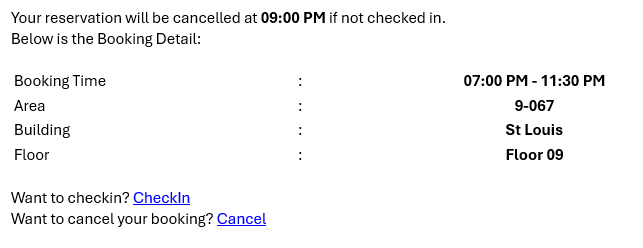
- If enabled, you may get notified before a booking is cancelled to remind you to check-in. The email subject will be "VuSpace Booking Cancellation Reminder Notification" and will look similar to this and include your booking reservation details:
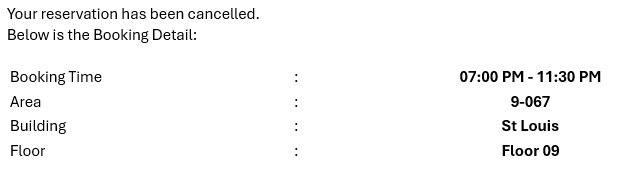
- When enabled, if you don't check-in before the time is up, you will get notified that your booking was cancelled. The email subject will be "VuSpace Booking Cancellation Notification" and will look similar to this and include your booking reservation details:
Community
When you want to know when other users will be in the office or need to work near other specific users to collaborate with, the Community features help you see where other users have booked a space so you can book near them.
Following People
- By navigating to the People view you can search for other users in the system to follow.
- They can accept your request to follow them and then follow you back if they desire to.
- Once you have people you are following, you will see their bookings in the Community bookings on the Home page or through the Calendar view.
- You can easily book a space nearby using the instructions above.
Groups
- By navigating to the Groups view you can organize the users you are following into groups for easier tracking.
- When you click the Create Group button you will be prompted to give the group a name.
- After saving the group with a name, you can add as many users as you like who you are following to the group.
- Once you have your groups setup, you will see their bookings in the Community bookings on the Home page or through the Calendar view.
- You can easily book a space nearby using the instructions above.
Was this article helpful?
That’s Great!
Thank you for your feedback
Sorry! We couldn't be helpful
Thank you for your feedback
Feedback sent
We appreciate your effort and will try to fix the article